
Your Sony TV Has Been Lying to You : These 3 Settings Change Everything
Out of the box, your Sony TV is deliberately set to look good in a bright store, not your living room. Three quick changes and you'll feel like you bought a completely different TV.
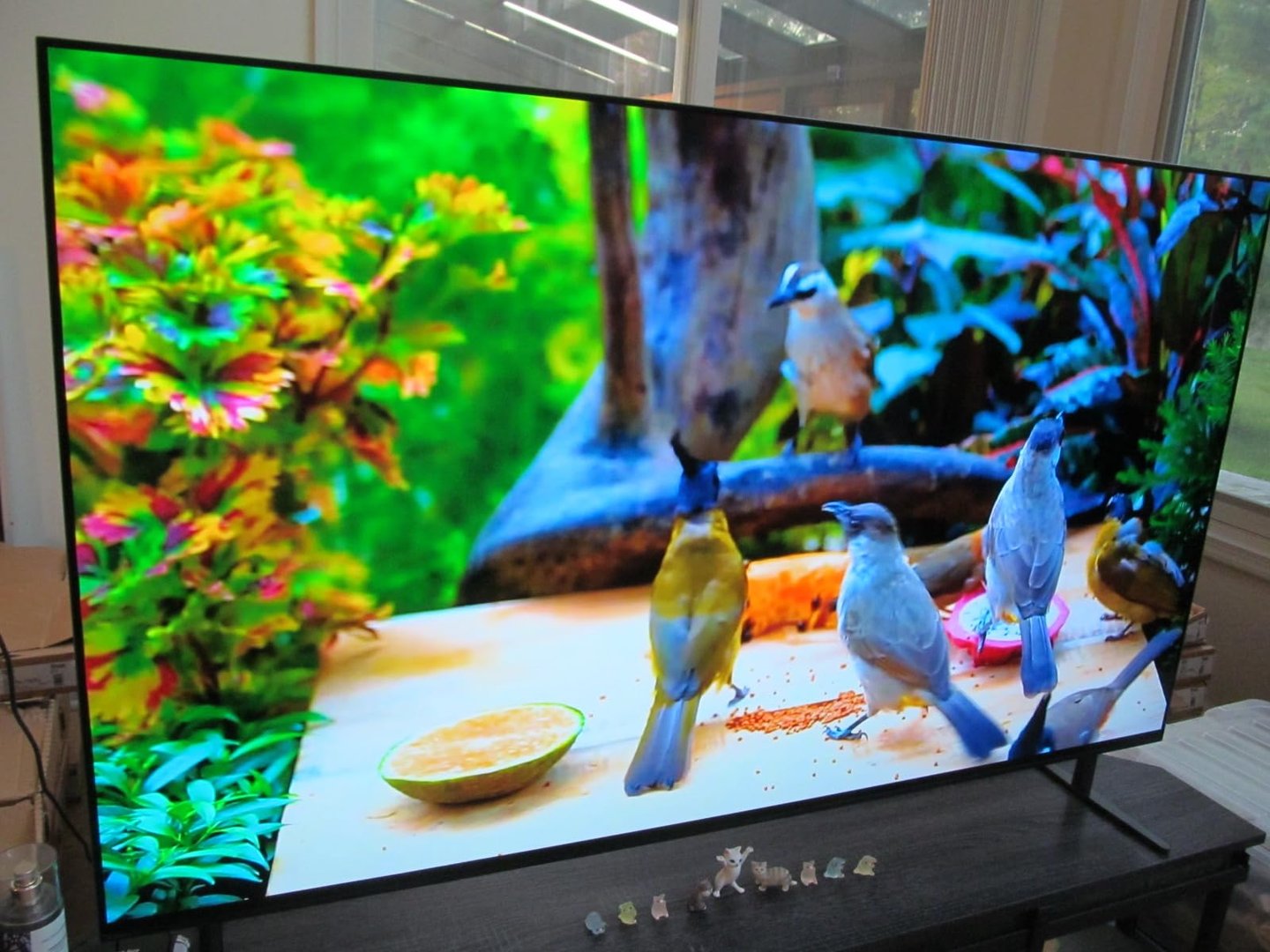
Sony TVs are genuinely great displays. But the dirty secret is that every single one ships with settings optimized for a retail showroom, blazing bright, oversaturated, and running a motion processing mode that makes your $1,500 TV look like a cheap soap opera. You paid for a premium display. Here's how to actually see what it's capable of.
These three changes take about 90 seconds total. No apps, no accessories, no tech background needed, just your remote and the settings menu.
Change Your Picture Mode to Custom
The default "Vivid" mode is the single biggest problem. It cranks up brightness, contrast, and color saturation to absurd levels so your TV pops on a shelf next to 40 other TVs. In a dark or normal home environment, it looks garish and unnatural, like someone turned every color up to 11.
How to change it:
- → Press the Home button on your remote
- → Go to Settings → Display & Sound → Picture
- → Select Picture Mode
- → Change from Vivid to Custom (or Cinema for movies)
"The first time I switched a customer's Sony from Vivid to Custom, they literally gasped. Colors looked real instead of cartoonish. Skin tones were suddenly natural. It's that dramatic."
Andy, iHandyAndy TV Installer
Turn Off Motion Smoothing (MotionFlow)
This one causes more arguments on the internet than almost anything else in home tech, and for good reason. Sony's MotionFlow feature (sometimes called CineMotion) inserts artificially generated frames between real ones to make motion look smoother. The result? Every movie looks like it was shot on a camcorder at a community theater. Film people call it the "soap opera effect." It is the enemy of cinematic picture quality.
Directors, cinematographers, and colorists spend enormous effort crafting the look and feel of what you're watching. MotionFlow undermines all of it. Turn it off. You won't miss it.
How to turn it off:
- → Go to Settings → Display & Sound → Picture
- → Scroll down to Motion
- → Set MotionFlow to Off or True Cinema
- → Also set CineMotion to Off
Pro tip: If you game on your TV, leave MotionFlow off for gaming too. It adds input lag. Your reaction time will thank you.
Switch Color Temperature to Warm
Out of the box, Sony TVs default to a "cool" or "neutral" color temperature, which means whites look slightly blue-white. It looks crisp and high-tech on a shelf, but it's not accurate. Real whites in film and TV are warmer. Switching to Warm 1 or Warm 2 brings the white balance much closer to what the content creator actually intended.
This is especially noticeable in faces and skin tones. Cool color temperature makes everyone look slightly sickly. Warm fixes it instantly.
How to change it:
- → Go to Settings → Display & Sound → Picture
- → Select Advanced Settings
- → Find Color Temperature
- → Change to Warm 1 or Warm 2
Start with Warm 1. It's a subtle but noticeable shift. If you want to go further, Warm 2 is closer to the D65 white point standard used in professional color grading. Most people who try it never go back.
The 90-Second Sony Fix: Quick Summary
Picture Mode
Vivid → Custom
MotionFlow
Standard → Off
Color Temp
Cool/Neutral → Warm 1
Settings sorted. Now make sure your TV is actually mounted at the right height, because even the best picture looks bad if you're craning your neck to watch it.
Need a Professional TV Mount?
We install TVs across Denver, Houston, Austin, and Los Angeles, no wires showing, no guesswork, no damage to your walls. Your perfect picture deserves a perfect mount.