How to Connect a TV to WIFI
without a
Remote
You can do it! Lost your remote? No problem. Here are the 3 easiest ways to connect your TV to WiFi without a remote control.
3 Quick Solutions
1 of these methods should work for you
USB Mouse & Keyboard
Connect a USB mouse and keyboard to your TV's USB port to navigate settings and connect to WiFi.
Ethernet Cable
Plug an Ethernet cable from your router to your TV for instant internet connection. Simple and reliable.
Smartphone App
Use your phone as a remote with companion apps from Samsung, Sony, LG, Vizio, TCL, and more.
Connecting a USB Mouse to Your TV for Control
Modern televisions feature USB ports which can be used to connect a USB keyboard and mouse to control the TV. If you connect a USB keyboard and mouse to the television, you can use the mouse to navigate the TV's settings, including the wireless network settings, to establish a connection to your wireless network.
Important Note:
This method is only compatible with certain smart TVs. It's recommended to check the compatibility and test the TV's detection by using the mouse and keyboard before proceeding with the wireless network connection.
Step-by-Step Instructions:
-
1
Locate the USB ports on your TV (usually on the side or back panel)
-
2
Plug in a USB mouse (and optionally a USB keyboard for easier password entry)
-
3
Wait a few seconds for the TV to detect the devices
-
4
Use the mouse to navigate to Settings → Network → Wireless
-
5
Select your WiFi network and enter the password
Connecting Your TV to Your Router via Ethernet Cable
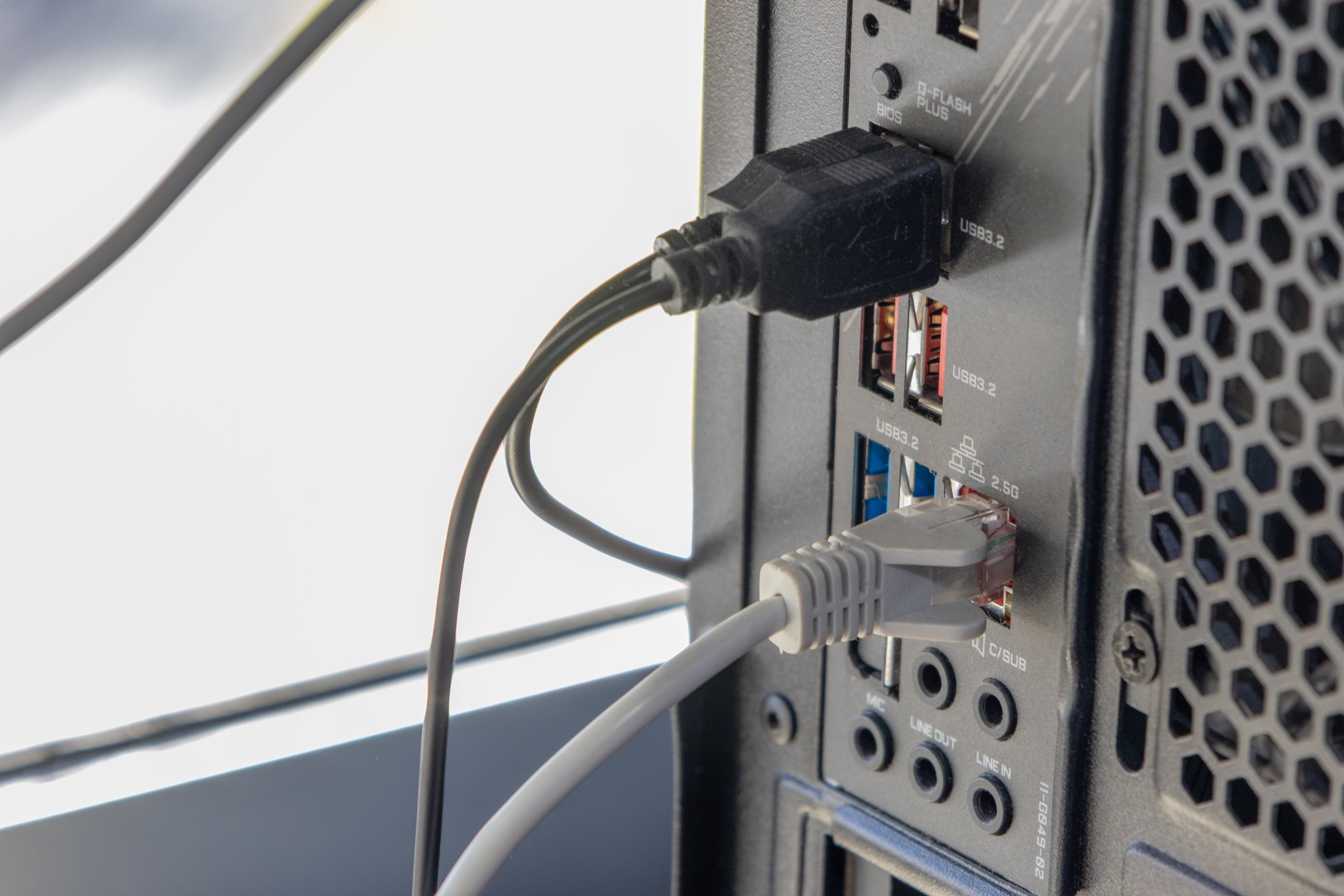
Connecting your TV to your router via Ethernet cable is a simple process. Plug one end of an Ethernet cable into your TV and the other end into an available port on your router. Check your TV's network settings to confirm the connection.
Why Choose Ethernet?
-
Faster Speeds
Enjoy faster data transfer speeds
-
More Stable
No WiFi interference or signal drops
-
Better Streaming
Smoother streaming of your favorite content
-
No Remote Needed
Automatic connection when plugged in
Quick Setup Guide:
-
1
Locate the Ethernet port on your TV (usually near HDMI ports)
-
2
Connect one end of the Ethernet cable to your TV
-
3
Connect the other end to an available port on your router
-
4
Your TV should automatically detect and connect to the network
Control TV with Companion Smartphone App
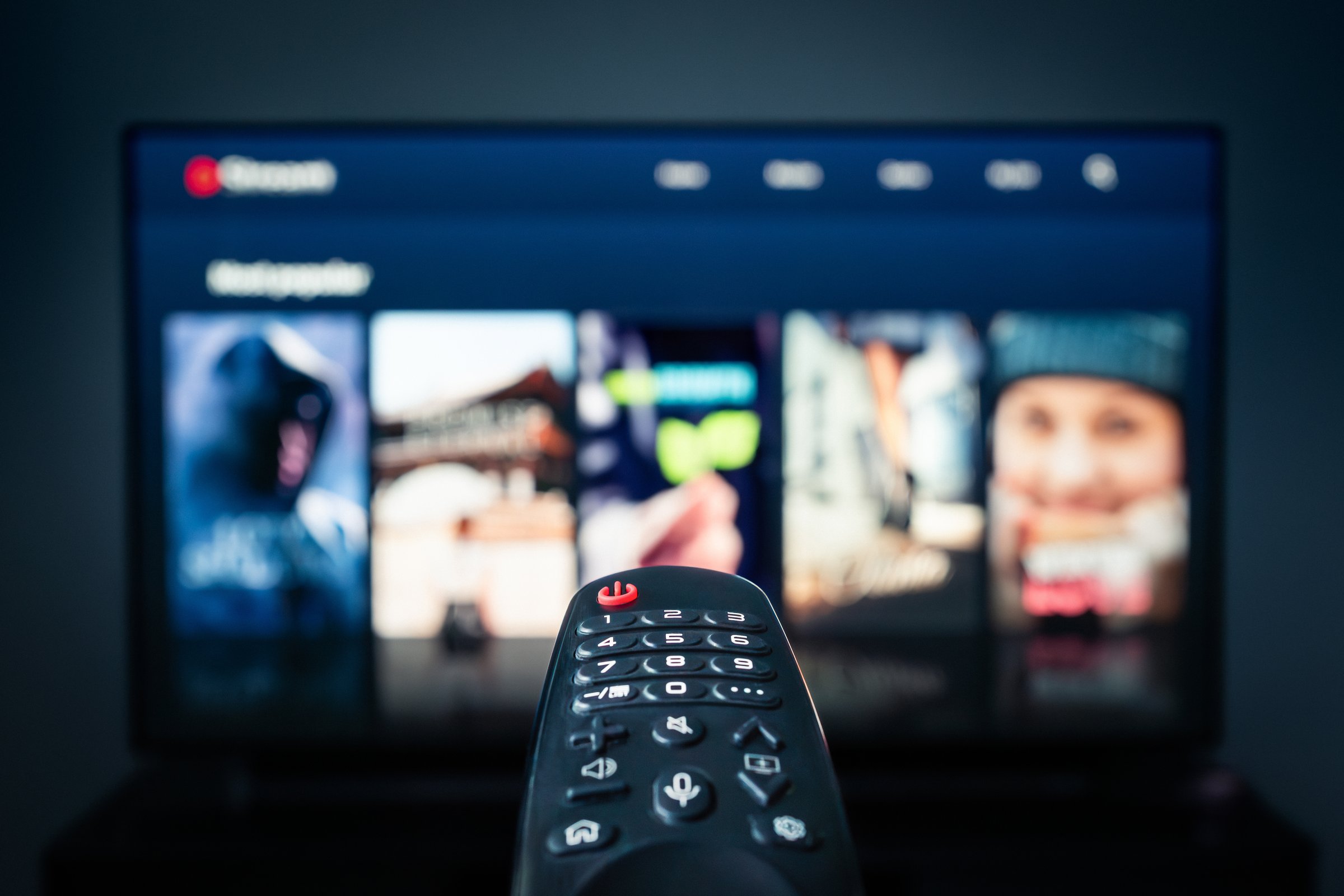
You can use your phone as a remote control for your Smart TV once it's connected to the internet by using the companion app provided by the TV company.
App Benefits:
-
Turn your smartphone into a full-featured remote
-
Easy keyboard input for passwords and searches
-
Voice control and advanced features
-
Works from anywhere in the room
Official TV Remote Apps
Samsung TV
SmartThings App
Sony TV
Video & TV SideView
Vizio TV
SmartCast App
LG TV
LG ThinQ App
TCL TV
Roku App
Hisense TV
RemoteNOW App
Important Note:
Your TV must already be connected to the internet (via Ethernet or one of the other methods) before you can use the smartphone app to control it.
TV Brand-Specific Instructions
Detailed setup guides for popular TV brands including Samsung, Sony, LG, Hisense, and more
Samsung TV
Smart TV setup without remote
Sony TV
Sony Bravia WiFi connection
Insignia TV
Using TV's physical buttons
Hisense Roku TV
Roku mobile app method
RCA TV
On-screen menu navigation
Vizio TV
SmartCast app setup
LG TV
Voice commands & ThinQ app
Element TV
Alternative connection methods
Philips Smart TV
MyRemote app & built-in WiFi
TCL TV
Control panel button navigation
Lost Your Remote? Get One Here!
Don't let a missing remote keep you from enjoying your TV. Get a compatible replacement delivered fast.
Buy Now on AmazonFree shipping available • 30-day returns
Samsung Smart TV
Connecting without a remote control
To connect a Samsung Smart TV without a remote control to Wi-Fi, turn on the TV and navigate to the Settings menu. Then, select Network and choose the Wireless option. Follow the on-screen instructions to connect to your Wi-Fi network.
Video Tutorial Available
Check out this helpful video guide for visual step-by-step instructions.
Watch Samsung TV GuideLost Your Remote?
No problem! Get a replacement Samsung remote delivered quickly.
Get a Samsung remote hereNeed Help?
If you encounter any issues, contact Samsung customer support for assistance.
Sony Smart TV
Wi-Fi setup with USB adapter
To connect a Sony TV to Wi-Fi without a remote, use a USB Wi-Fi adapter. Plug the adapter into the TV's USB port, then navigate to the Network option in the menu. Select "Wireless Setup" and follow the on-screen prompts to connect to your wireless network.
Step-by-Step Process:
-
1
Insert USB Wi-Fi adapter into TV's USB port
-
2
Navigate to Network settings using TV buttons
-
3
Select "Wireless Setup"
-
4
Follow on-screen prompts to connect
Video Guide
Watch helpful videoNeed a Remote?
Get a Sony remote hereIf you encounter any issues, refer to the TV's manual for further instructions specific to your Sony model.
Insignia Smart TV
Using the TV's physical buttons
Button Control Method:
Power On
Turn on the TV using its power button.
Access Settings
Press the 'Menu' or 'Settings' button on the TV.
Find Network
Navigate to 'Network' or 'Wireless' settings.
Select & Enter
Choose your Wi-Fi network and input your password using the TV buttons.
Get a Replacement Remote
Make navigation easier with a new Insignia remote.
Get an Insignia remote hereHisense Roku TV
Connect using Roku mobile app
To connect a Hisense Roku TV to Wi-Fi without a remote, use the Roku mobile app. Open the app and select Devices from the bottom menu, then select Add a device. Your TV should be listed as an available device.
Complete Setup Process:
-
1
Download and open the Roku mobile app
-
2
Select "Devices" from the bottom menu
-
3
Choose "Add a device" and find your TV
-
4
Enter the PIN displayed on your TV screen
-
5
Use the app to navigate: Settings → Network → Wireless
-
6
Select your Wi-Fi network and enter password
-
7
Select "Connect" to finish setup
Sony Bravia TV
Using Control for HDMI feature
To connect a Sony Bravia TV to a Wi-Fi network without using a remote, use the Control for HDMI feature. Connect a device that supports Control for HDMI, such as a PlayStation 3 or 4 console, to the TV.
Setup Instructions:
-
1
Connect a Control for HDMI device (PlayStation, etc.)
-
2
Press the home button on your TV remote
-
3
Navigate to Settings → Network & Internet
-
4
Select "Setup Wizard" and choose "Easy"
-
5
Select "Wireless" as the connection type
-
6
Choose your Wi-Fi network from the list
-
7
Enter the password and select "Done"
RCA TV
On-screen menu method
For RCA TV models that don't have a remote, you can connect them to Wi-Fi by using the on-screen menu. Go to the Menu button on the TV, select the Network option, then select Wireless and follow the prompts to connect to your Wi-Fi network.
Simple Steps:
-
1
Press the Menu button on the TV
-
2
Select the "Network" option
-
3
Select "Wireless" connection
-
4
Follow the prompts to connect
Troubleshooting Tip:
If you have trouble connecting, ensure that the TV is in range of your router and that the network password is entered correctly.
Vizio TV
SmartCast app method
To connect a Vizio TV to Wi-Fi without a remote, use the Vizio SmartCast app on a smartphone or tablet. Ensure the TV is connected to the internet via an Ethernet cable first. Then open the Vizio SmartCast app, and select your TV from the list of devices.
Setup Process:
-
1
First: Connect TV to internet via Ethernet cable
-
2
Download Vizio SmartCast app on your phone/tablet
-
3
Open the app and select your TV from device list
-
4
Use the app to control TV and stream content
LG TV
Voice commands & ThinQ app
LG TVs that come with the Magic Remote can be controlled using voice commands by pointing the remote at the TV and pressing the microphone button. If your LG TV does not have the Magic Remote, you can still use voice commands by connecting an external speaker with a built-in microphone.
Voice Commands You Can Use:
Element TV
Multiple connection methods
If you don't have the remote for your Element TV, there are still a few ways to connect it to your Wi-Fi network.
On-Screen Menu
Check if your TV has an on-screen menu that allows you to enter your Wi-Fi network information using the TV's physical buttons.
USB/Bluetooth Keyboard
See if you can connect a USB or Bluetooth keyboard to your TV to input the WiFi information more easily.
Mobile App
Some Element TVs have a mobile app that you can use to control the TV, and it may be possible to connect to your Wi-Fi network using the app.
Factory Reset
If none of the above options work, try resetting the TV to factory settings and inputting your Wi-Fi information again.
Philips Smart TV
MyRemote app & built-in WiFi
There are a few ways that you can connect your Philips smart TV to WiFi without a remote. One way is to use the Philips MyRemote app. This app allows you to control your TV with your smartphone. Another way is to use the built-in WiFi in your TV.
Built-in WiFi Method:
-
1
Go to the Menu using TV buttons
-
2
Navigate to "Network" settings
-
3
Select the "WiFi" option
-
4
Choose your network and enter password
Philips MyRemote App
Use your smartphone to control your Philips TV with the dedicated MyRemote app available for iOS and Android.
TCL TV
Control panel navigation
Connecting your TCL smart TV to Wi-Fi without a remote is a straightforward process. The control panel on the side or bottom of your TV houses a series of buttons that can be used to navigate the settings menu.
Step-by-Step Process:
-
1
Access Settings Menu
Press the 'Menu' or 'Settings' button on your TV's control panel
-
2
Find Network Settings
Navigate to 'Network' or 'Wireless' section using TV buttons
-
3
Select Wi-Fi
Choose 'Wi-Fi' and your TV will display available networks
-
4
Choose Your Network
Select your network from the list and press 'OK' or 'Enter'
-
5
Enter Password
Use the on-screen keyboard to enter your network password
-
6
Connect
Select 'Connect' or 'OK' to finalize the connection
Success!
A confirmation message or icon will appear once the connection is successful.
TCL Reviews
Need Help Setting Up Your TV?
Our professional TV mounting specialists can help you with WiFi setup, TV installation, and mounting services. Let the experts handle it!
Expert Mounting
Professional wall mounting for all TV brands
WiFi Setup
Complete network configuration and testing
Full Setup
Cable management and complete installation